 qubosis
Explore from several angles
Import tables, molecular structures, trajectories, and images. Connect selections across compatible visual views.
ANALYSIS & COMMUNICATION / SCIENTIFIC VISUALIZATION

Give your research a clearer picture.
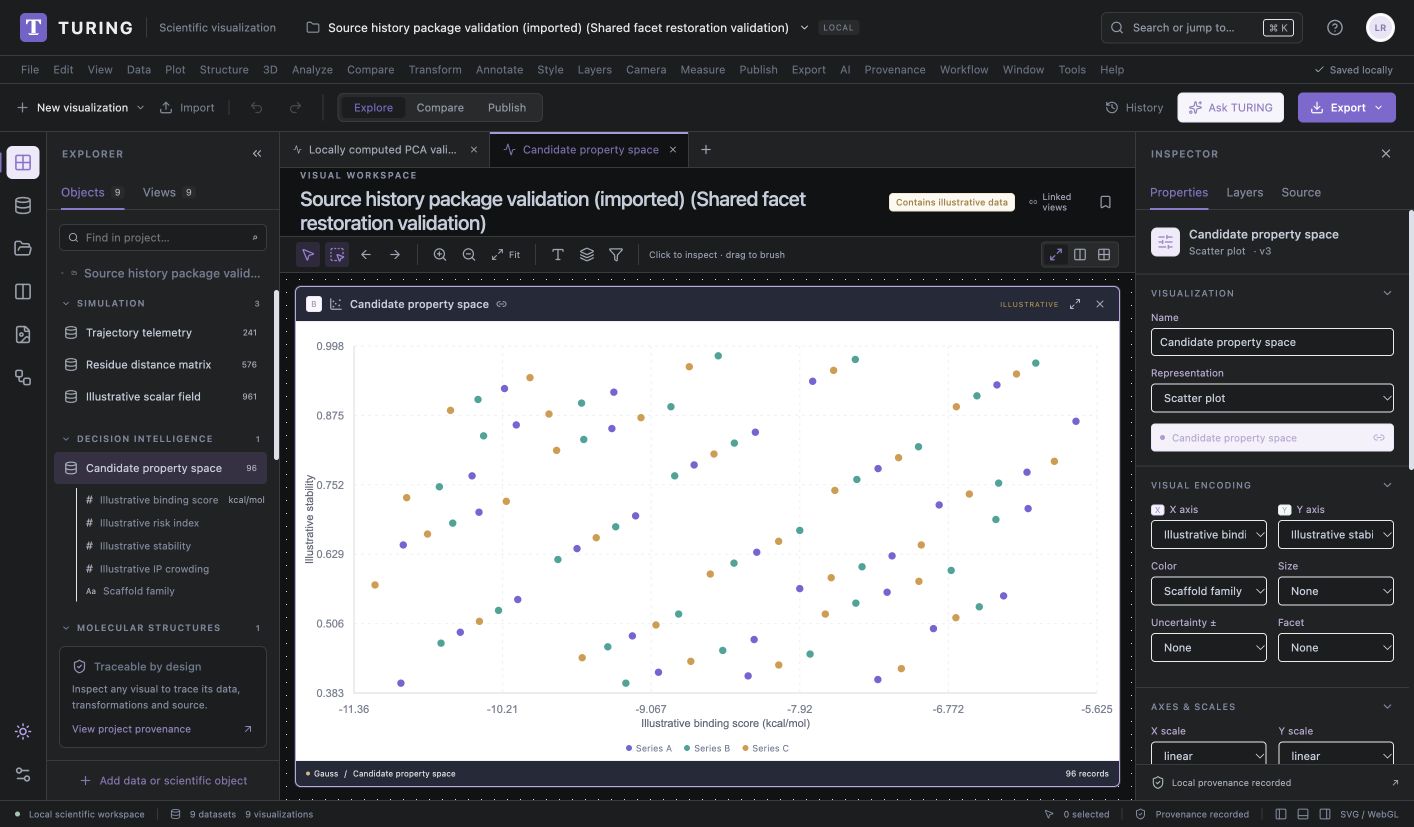
Turn scientific data into linked views and publication figures. Turing brings data exploration, analysis, figure composition, source provenance, and reproducible exports into one workstation for scientific communication.
01 / OVERVIEW
Turn scientific data into linked views and publication figures. Turing brings data exploration, analysis, figure composition, source provenance, and reproducible exports into one workstation for scientific communication.
The sections below describe the product capabilities, use cases, system requirements, and documented workflow in the source application.
02 / FEATURES
This inventory explains what each capability does, which records and decisions it touches, and where its scientific or operational boundary applies. External services and unavailable engines are identified as such.
Import tables, molecular structures, trajectories, and images. Connect selections across compatible visual views.
Apply non-destructive transformations, regression, correlation, PCA, and deterministic clustering with recorded context.
Compose panels, captions, and annotations. Export SVG, PNG, PDF, CSV, and reproducibility packages.
Preview CSV, TSV, record JSON, scientific dataset JSON, PDB, XYZ trajectories, and PNG/JPEG/WebP images before accepting them. Inspect inferred types, units, missing values, citation, license, and source-version metadata.
Build scatter, line, area, bar, histogram, box, violin, density, matrix, contour, graph, timeline, parallel-coordinate, Pareto, spectrum, molecular, Cartesian 3D, surface, mesh, vector, image, and orthogonal-volume views.
Select points or brush regions and propagate compatible selections through declared object relationships. Save camera bookmarks and recipes so a view can be revisited with its source versions and filters intact.
Record transformations instead of rewriting inputs. Supported analyses include ordinary least squares, pairwise Pearson correlation, graph connectivity, standardized PCA, and deterministic k-means through cancellable background tasks.
Match datasets using explicit keys, convert compatible units, and inspect unmatched records alongside absolute or relative differences. The comparison keeps source rows and identities visible.
Inspect fixed axes, shared or independent facet scales, common histogram bins, color mappings, units, missing observations, supplied error magnitudes, and complete-pair correlation sample sizes.
Arrange ordered panels, annotate observations, and write captions, methods, and review notes. Record physical dimensions and DPI for raster outputs and pin the source and visualization versions reviewed.
Export SVG, PNG, PDF, underlying CSV, visualization JSON, and ZIP reproducibility packages. Plot text can remain vector in SVG/PDF; 3D scenes and voxel slices are embedded raster images.
Retain originating product, object ID, version, status, citation, license, file hash, and source owner/destination in scientific records. Idempotent handoffs reject changed content under a reused request key.
Package visualization specifications, declared input versions, archived inputs when present, and hashes in a manifest. Inspect completeness before moving a project to another workstation.
03 / SYSTEM REQUIREMENTS
Node.js 22.13 or newer with `node:sqlite` support and a modern browser. The application uses local SQLite for durable workspace state.
Run `npm install` and `npm run dev`; the script starts the web interface and local SQLite API. For verification and deployment, use `npm run verify`, `npm run build`, then `npm start`.
04 / USE CASES
These examples show how the product’s implemented tools can be combined. They describe workflows, not guaranteed scientific outcomes.
Explore a dataset across linked charts, graphs, molecular views, and trajectory panels.
Compare two datasets using explicit keys, units, and unmatched-record review.
Compose multi-panel figures with methods, physical dimensions, captions, and annotations.
Export publication-ready plots together with the source versions and visualization specification.
Explore a table or molecular trajectory through coordinated charts, graphs, images, and 3D representations.
Compare two cohorts or dataset versions using explicit keys and unit conversion while reviewing unmatched records.
Build a multi-panel publication figure with fixed physical size, captions, methods, annotations, and version-pinned sources.
Inspect how a result changes under PCA, clustering, regression, or correlation while preserving the original input data.
Export a reproducibility package that reports whether every declared source version is present.
05 / DOCUMENTATION
A detailed operating manual from first setup through advanced analysis, review, collaboration, and export. Each section explains the records to prepare, the steps to take, how to read the result, and what remains outside the implemented product.
A guide to the sequence of work in Turing. Steps can require review or configured services before continuing.
FIND YOUR NEXT STEP
17 of 17 chapters
FOUNDATIONS
Turing is a local scientific visualization workstation. Create a project before importing data so the source, object versions, visualizations, and exports have a persistent context. Supported inputs include CSV, TSV, record and scientific dataset JSON, PDB, XYZ trajectories, and PNG, JPEG, or WebP images.
The import preview reports inferred column types, units, missing data, citation, and license. Check each field before accepting it. The application does not infer scientific meaning from a column name alone, and a declared time variable or unit should be checked against the source documentation.
Name the research question and keep related datasets and views in one workspace.
Select a table, supported structure, trajectory, or image and inspect the import preview.
Check types, units, missing observations, source citation, and license before acceptance.
Use the versioned dataset in a saved visualization so later changes are detectable.
FOUNDATIONS
Use the workbench to create visualizations and connect compatible selections. Turing supports scatter, line, area, bar, histogram, box, violin, density, matrix, contour, graph, timeline, parallel-coordinate, Pareto, spectrum, molecular, Cartesian 3D, surface, mesh, vector, image, and orthogonal-volume representations.
Point selection, region brushing, declared relationship propagation, cross-filtering, and camera bookmarks help inspect a research object from several angles. A linked selection follows declared relationships; it does not imply that two records are causally related. Review the source version and link definition when a selection surprises you.
FOUNDATIONS
Turing records transformations instead of rewriting the original dataset. Available analysis includes ordinary least squares, pairwise Pearson correlations, graph connectivity, standardized PCA, and deterministic k-means, among other tools. Review input variables, missing-data behavior, model settings, and task cancellation before interpreting output.
Dataset comparison can match by explicit keys, convert compatible units, and show unmatched records and absolute or relative differences. Faceted plots use shared scales by default to aid comparison, while independent scales remain an explicit option. Preserve supplied uncertainty values and units; Turing will not create missing error bars.
FOUNDATIONS
In Figure Studio, arrange panels, order them, define captions and methods, annotate observations, and record review notes. Set physical size and DPI for PNG output. Pin the source and visualization versions reviewed so a figure can be connected to the exact data state.
SVG and PDF preserve plot text while 3D scenes and voxel slices are embedded raster images. Inspect the exported file at its intended publication size. Include source status and version in the figure metadata and report any sampling or scale policy used for dense or faceted views.
FOUNDATIONS
Turing exports SVG, PNG, PDF, underlying CSV, visualization JSON, and ZIP reproducibility packages. The package manifest states whether declared input versions are present and includes archived inputs and hashes when available. Verify the manifest and retain the package with the original source files where required.
Imports are bounded to 30 MB and 250,000 table rows. Larger plots may use stated sampling limits. A project package is bounded to 30 MB compressed and 40 MB expanded, with at most 1,000 declared source versions. Check the limits displayed in the application before preparing a large handoff.
FOUNDATIONS
Missing numeric observations remain missing rather than being treated as zero. Error bars require supplied nonnegative magnitudes in compatible units. Numeric color scales include endpoints and units, and correlated values report their complete-pair sample size. These details help a chart remain honest about its data.
Plots do not validate scientific conclusions. Inspect whether uncertainty was supplied, whether axes share comparable scales, whether the source is current, and whether a transformation changes the interpretation. The default demo fixtures are illustrative and carry no experimental or validated scientific status.
WORKING IN DEPTH
Create a project for one visualization question before importing files. Supported inputs include delimited tables, record and scientific dataset JSON, PDB coordinates, XYZ trajectories, and common raster images. The import preview reports inferred schema, units, missing data, citation, license, and source status; check those fields rather than relying on file extensions alone.
For PDB data, verify model and atom identity. XYZ imports explicitly assume angstroms unless the source establishes another convention. Tables need declared units and stable keys if they will be compared. Accept the import only after confirming that missing numeric observations remain missing and that all source and licensing metadata are correct.
Record the scientific question and the dataset context before bringing in source files.
Review schema, units, missingness, citation, license, and any parser warnings.
Preserve the input version so saved views can be reviewed against the same data.
WORKING IN DEPTH
Turing supports a broad catalogue of chart, graph, molecular, image, and volume views: scatter, line, area, bar, histogram, box, violin, density, matrix, contour, graph, timeline, parallel coordinates, Pareto, spectrum, molecular, Cartesian 3D, surface, mesh, vector, image, and orthogonal volume. Pick a representation based on the variables and question rather than selecting a chart for visual effect.
Axis, color, size, and geometry encodings should retain units and meaning. Numeric color scales include endpoints and units. Missing values remain missing instead of becoming zero. If a plot samples dense data or omits labels, inspect the notice and use the underlying table or inspector for the full record names.
WORKING IN DEPTH
Point selection and region brushing can connect compatible views. Cross-filtering follows declared relationships among scientific objects and can reveal which records contribute to a selected region. Review the relationship definition and source version when a selection propagates; a link in the data model does not imply a causal or functional relationship.
Camera bookmarks and saved recipes help a collaborator return to a selected orientation, filter, or view. Save the visualization state after important changes and keep a note about the intended selection. A saved state is a view of the source, not a copy of the underlying scientific truth; if its input version changes, review the stale indication before reusing it.
WORKING IN DEPTH
The workbench records transformations as derived operations rather than rewriting original data. Available analysis includes ordinary least squares, pairwise Pearson correlations, graph connectivity, standardized principal-component analysis, and deterministic k-means. Review which variables enter each task, how missingness is handled, the method settings, and cancellation status before interpreting the output.
Correlation uses complete pairs and records the sample size. PCA standardizes variables according to its documented method, while clustering is deterministic for the stated inputs and settings. These algorithms summarize the selected data; they do not establish causality, significance, or meaningful biological classes without a scientific review. Preserve the input version and task metadata with any derived table or figure.
Check types, units, sample size, and missingness before choosing an analysis.
Save selected fields, transformations, and parameters with the task.
Review diagnostics and outputs, then decide whether they answer the research question.
WORKING IN DEPTH
Dataset comparison matches records by explicit keys, converts compatible units, and reports unmatched records and absolute or relative differences. Choose the key fields deliberately and review duplicate or missing keys before comparing. A join that silently loses records can create a persuasive but misleading chart.
Unit conversion uses compatible dimensions and preserves source values. Check the conversion path and whether the requested comparison is scientifically meaningful; equal units do not guarantee equal measurement procedures. Keep unmatched observations visible, and state whether your conclusion is based on matched pairs, all records, or a filtered subset.
WORKING IN DEPTH
Faceted plots use shared axes and numeric color scales by default to support cross-panel comparison. Categorical colors retain group mapping; shared histograms use common bins, and shared density views use an attributed pooled bandwidth. Independent scales are available explicitly and should be identified in the figure because they change visual comparison.
Error bars require supplied nonnegative magnitudes in compatible units; uncertainty conversion uses scale factors without affine offsets. Turing does not invent absent uncertainty values. For graph views, arrows require declared direction, paths follow directed edges, and force layout does not encode measured distance. For images and volumes, calibration and anisotropic spacing determine physical measurements; uncalibrated coordinates remain labeled as such.
WORKING IN DEPTH
Figure Studio arranges multiple panels in a chosen order and adds captions, methods, annotations, and review notes. Pin the exact source and visualization versions inspected, then set physical dimensions and DPI for PNG output. A figure should identify its scale policy, sampling behavior, and any supplied uncertainty that informs interpretation.
SVG and PDF preserve plot text as vector elements, while 3D scenes and voxel slices are embedded raster content. Inspect the exported figure at the intended publication size for legibility and inspect the complete data separately from the visible preview. Figure composition improves communication; it does not validate the statistical or scientific conclusion represented by a plot.
Choose order and shared or independent scales deliberately, and keep related views linked.
Describe data source, transformations, units, and analysis settings needed to reproduce the figure.
Record source/view versions and choose SVG, PNG, or PDF with appropriate dimensions.
WORKING IN DEPTH
Export SVG, PNG, PDF, underlying CSV, visualization JSON, or a ZIP package. The package manifest indicates whether declared input versions are present and includes archived inputs and hashes where available. Verify the manifest before handoff; a package marked incomplete should not be represented as self-contained.
Project archives have file-size, row-count, compressed-size, expanded-size, and source-version limits. The app displays those bounds for large files and packages. Keep original sources and license notes with the export when required. Visualization JSON can describe the view but does not replace the source dataset unless that dataset is included in the package.
WORKING IN DEPTH
Scientific source records retain their originating product, object ID, version, status, citation, license, and file hash. A cross-product handoff should identify the source owner and destination project. Repeated request IDs are idempotent; reuse of a key with changed content is rejected so a retry cannot silently modify an earlier transfer.
When an upstream object changes, existing visualizations can become stale until reviewed and rebound. Confirm the new dataset version and row identities before updating a view. Preserve the old saved visualization if it supports an earlier report or decision. Source ownership is not changed by an atomic visualization command.
WORKING IN DEPTH
A visualization can make a pattern easier to inspect, but it cannot establish that a pattern is real, statistically significant, causal, or generalizable. Check sample size, selection filters, missingness, uncertainty, scale range, axis policy, and data calibration. Use external domain methods where the research question requires a validated statistical model or image/volume interpretation.
Bundled example records are illustrative and explicitly retain that status in the interface and exports. Supported import formats are bounded, and unsupported scientific formats require additional decoders. For 3D and voxel views, inspect coordinate units, voxel spacing, and rendering limits. Keep the method and source context close to every published figure.
WORKED EXAMPLE
An analyst imports two compatible table versions with a sample key, units, source citation, and license. The preview flags missing observations and inferred types before import. The analyst compares the datasets by their explicit key, checks unmatched rows, and converts only dimensionally compatible units. They create a scatter view and a distribution view, link selection where the declared relationships permit it, then run a documented regression or correlation analysis on the selected records.
In Figure Studio, the analyst orders the panels, writes methods and captions, annotates a point for review, and pins the exact source and visualization versions. They choose shared axes for direct comparison, or disclose independent scales when appropriate. Exported SVG or PDF preserves text as vector output, while a reproducibility package lists input versions and hashes. The figure still needs scientific interpretation; the visual pattern alone does not establish causality or statistical validity.
Check keys, units, missing data, citations, license, and source-version metadata.
Review matched and unmatched records before selecting a subset for analysis.
Create views appropriate to the question and save selection and scale policies.
Pin sources, add method text, export the figure, and verify the package manifest.
KEEP THIS CLOSE
Supported tables, molecular coordinates, trajectories, images or scientific datasets with types, units, citations, and source versions.
Saved visualization specifications, derived analyses, linked selections, multi-panel figures, underlying data, and reproducibility packages.
Check units, missingness, matching keys, scale policy, supplied uncertainty, calibration, source versions, and export completeness.
TERMS IN CONTEXT
WHEN SOMETHING NEEDS ATTENTION
Inspect explicit join keys, duplicates, filters, missing keys, and unmatched records before drawing a conclusion.
Supply nonnegative numeric uncertainty magnitudes in compatible units. The app does not infer missing errors.
Inspect its pinned source version and review a newer dataset before rebinding. Preserve the old view if a report depends on it.
06 / SCOPE AND LIMITS
Turing helps visualize and package supplied data; a chart's appearance does not validate its conclusion. Its bundled fixtures are illustrative, and unsupported file formats require additional decoders.
Confirm the current capability state in the application before starting work. A planned operation, a generated preview, or a queued job should not be described as a validated scientific result.
SEE TURING IN CONTEXT
Request a walkthrough with the Qubosis team.


